Stellar Repair for Outlook Review: Repair Corrupt PST Files Easily
A corrupt PST file can quickly turn into a serious problem, especially if it contains important Outlook emails, contacts, calendar entries, attachments, tasks, or business records. One day, Outlook works normally. Next, you may see an error message, experience crashes, or find that your mailbox data is no longer accessible.
For many users, the first instinct is to try Microsoft’s built-in Inbox Repair Tool, also known as ScanPST.exe. That can be helpful in some situations, but it may not be sufficient when the PST file is large, severely damaged, or affected by more complex corruption. In those cases, using an Outlook PST repair solution can be a more practical next step.
If you want to repair a corrupt PST file online, Stellar’s Online PST Repair solution offers a browser-based way to upload, analyze, repair, preview, and download a repaired PST file without installing software. For larger files or advanced recovery needs, Stellar also offers a desktop PST repair tool with more robust repair and recovery options.
What Is a PST File?
A PST file, or Personal Storage Table file, is an Outlook data file used to store mailbox information locally. Depending on how Outlook is configured, a PST file may contain emails, attachments, contacts, calendars, notes, tasks, and other mailbox items.
Because PST files can hold years of important communication, corruption can be frustrating and disruptive. A damaged PST file may prevent Outlook from opening properly or make certain folders, messages, or attachments inaccessible.
Common Signs of a Corrupt PST File
PST corruption is not always obvious at first. Sometimes Outlook slows down or freezes before the file becomes completely inaccessible. In other cases, the problem appears suddenly.
Common signs include:
- Outlook cannot open the PST file.
- Outlook crashes or freezes when accessing mailbox data.
- Emails, folders, contacts, or calendar items are missing.
- You receive errors when trying to open or import a PST file.
- Send/receive functions stop working properly.
- The PST file becomes unreadable or inaccessible.
- ScanPST.exe fails to repair the file.
- Outlook shows repeated prompts or errors related to the data file.
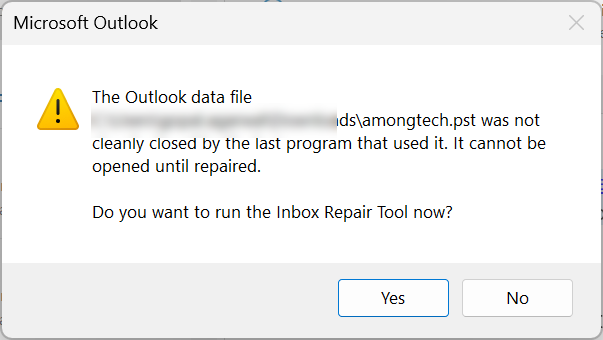
When these issues appear, it is important to stop repeatedly opening and closing the same file. Continued attempts can make recovery more difficult, especially if the PST file is stored on an unstable drive.
Why PST Files Become Corrupt
PST files can become corrupt for several reasons. Some issues are related to Outlook itself, while others are caused by storage, system, or file-size problems.
Common causes include:
- Oversized PST files
- Improper Outlook shutdowns
- Sudden system crashes
- Power failure while Outlook is running
- Bad sectors on a hard drive
- Malware or virus infection
- Failed import or export processes
- Network interruption while accessing a PST file
- Synchronization conflicts
- Header corruption or file structure damage
Large PST files are especially vulnerable because they can become harder for Outlook to manage over time. If the file is already unstable, crashes or failed repair attempts may make the problem worse.
First Step: Try to Repair the Corrupt PST File Online
For many users, the simplest starting point is an online PST repair tool. This avoids the need to install software and can be especially useful when you need a straightforward way to repair a single corrupt Outlook data file.
Stellar Online PST Repair is designed to repair corrupt or damaged PST files through a secure browser-based process. Users can upload a corrupt PST file, allow the system to analyze and repair it, preview the recovered folder structure, and then download the repaired file. The online solution can also help restore mailbox items such as emails, attachments, contacts, calendars, tasks, notes, and journals.
This makes the online solution a good first option if:
- You want to repair a PST file without installing software.
- You are working with a single corrupt PST file.
- You need a fast, browser-based repair process.
- You want to preview the repaired folder structure before downloading.
- You do not have Outlook installed on the same device.
- The file size fits the online solution’s supported limits.
For larger files or more complex recovery needs, the desktop edition may be the better fit.
How to Repair a Corrupt PST File Online with Stellar
The online repair process is designed to be simple. Here is the general workflow:
1. Go to Stellar Online PST Repair
Start by visiting the Stellar Online PST Repair page. This is the browser-based repair option for users who want to fix a corrupt PST file without installing desktop software.
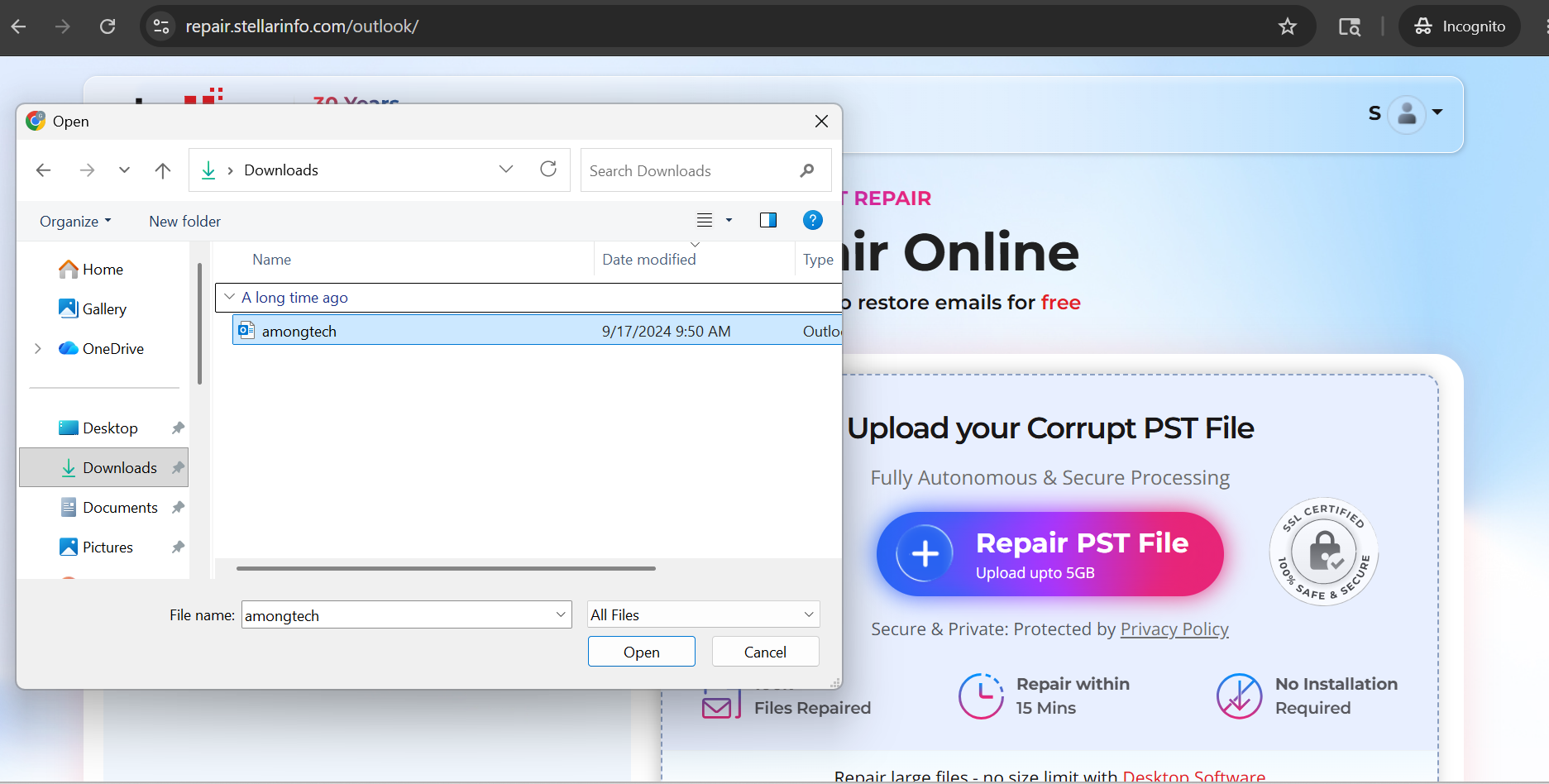
2. Upload the Corrupt PST File
Sign up and select the damaged PST file from your system and upload it to Stellar’s secure repair environment. The online tool supports one PST file at a time, so users with multiple damaged files may need to process them separately.
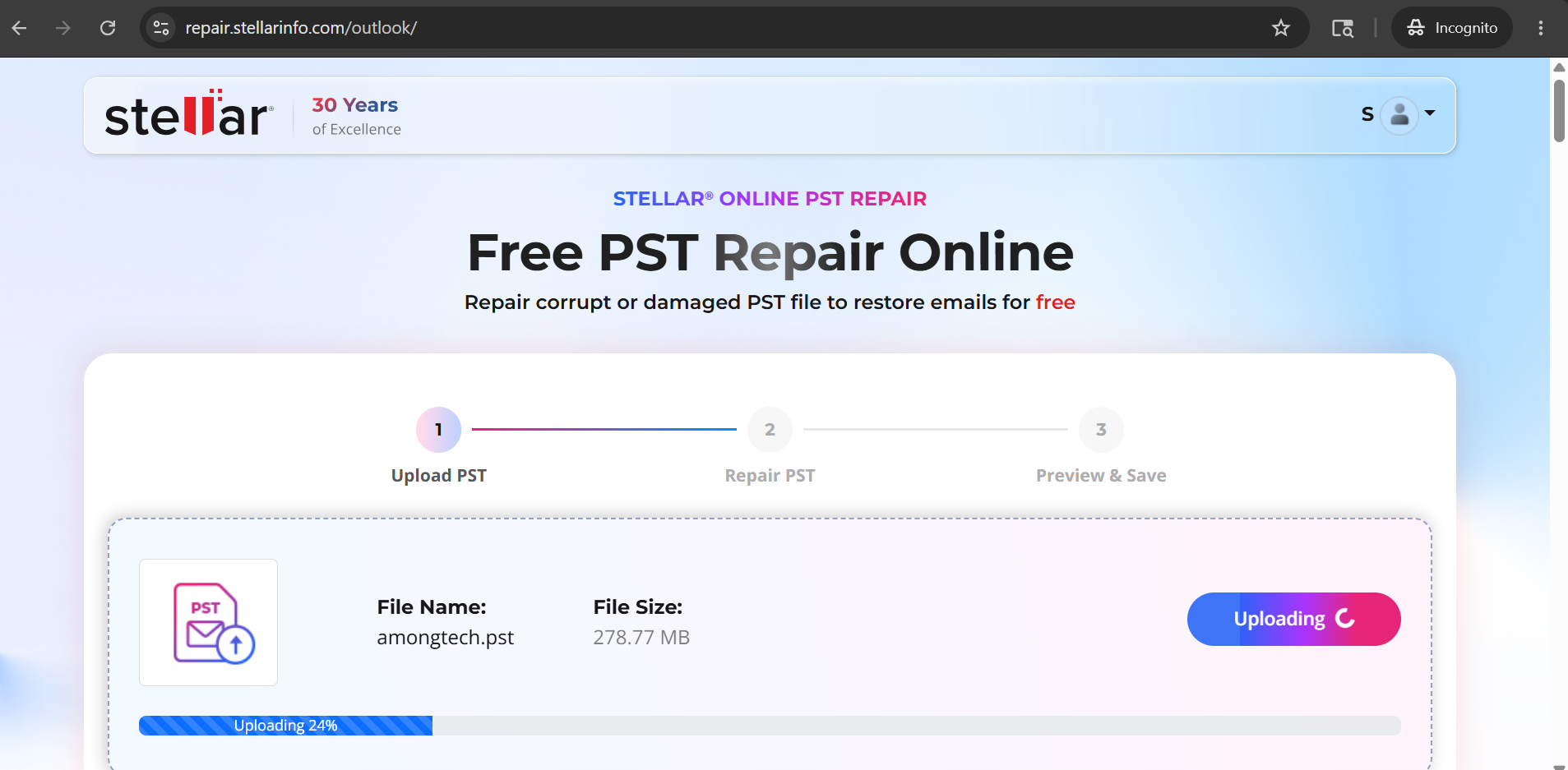
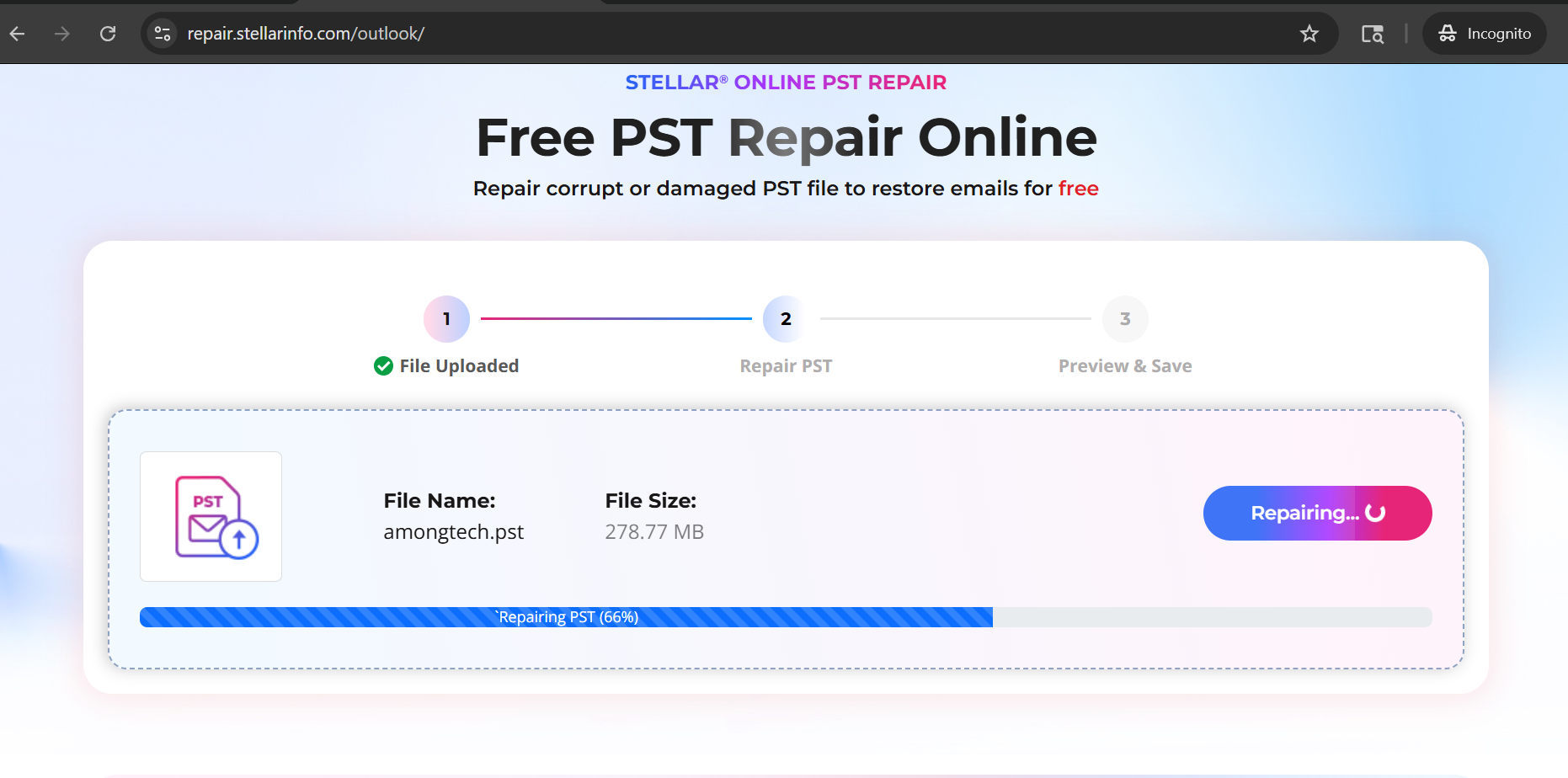
3. Let the Tool Analyze and Repair the File
Once the file is uploaded, click on “Start Repair” Button. The system analyzes the PST file and attempts to repair the corruption. The time required can vary depending on the PST file size, corruption level, and internet speed.
3.1 The tool first analyzes the uploaded PST file to identify corruption and assess the extent of damage.
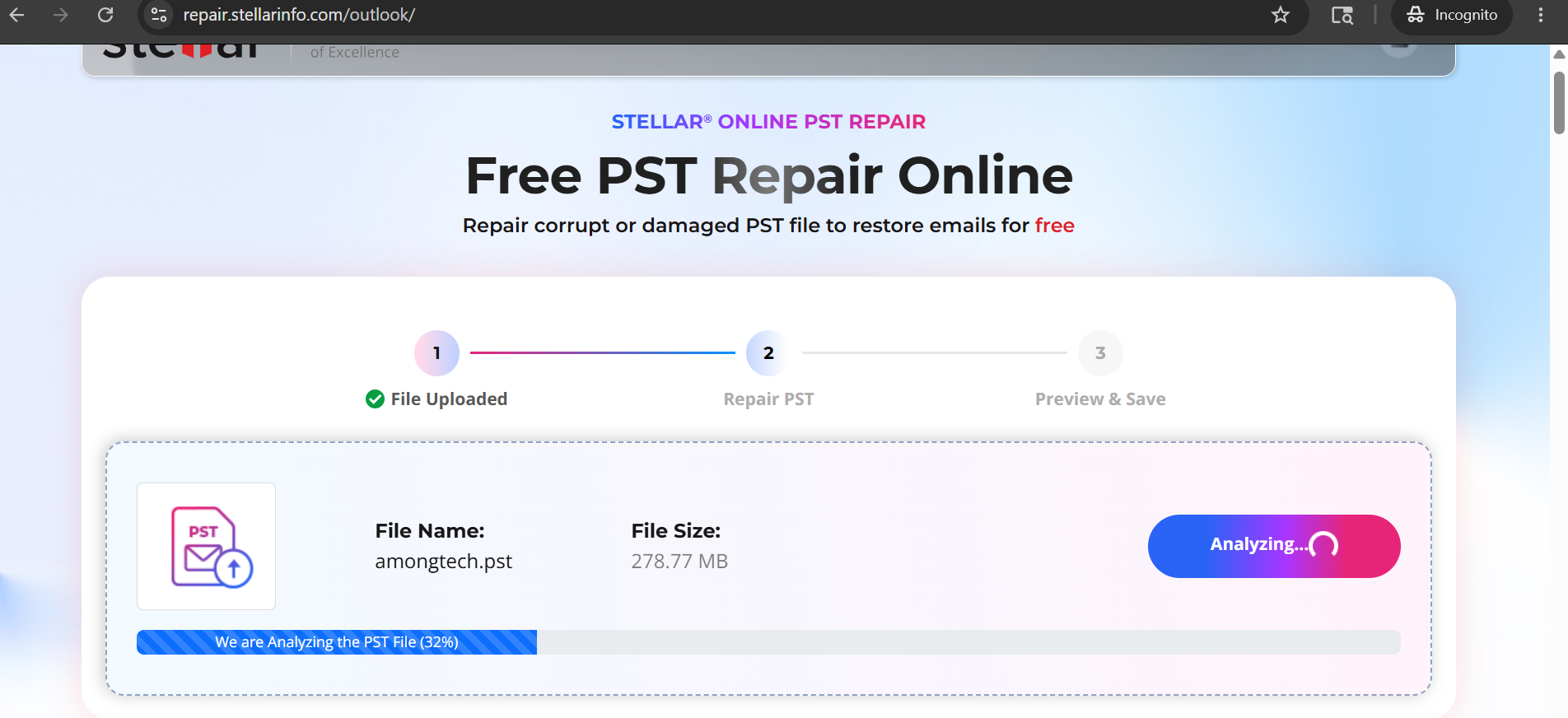
3.2: After the analysis is completed, the tool automatically begins the repair process to restore the PST file data.
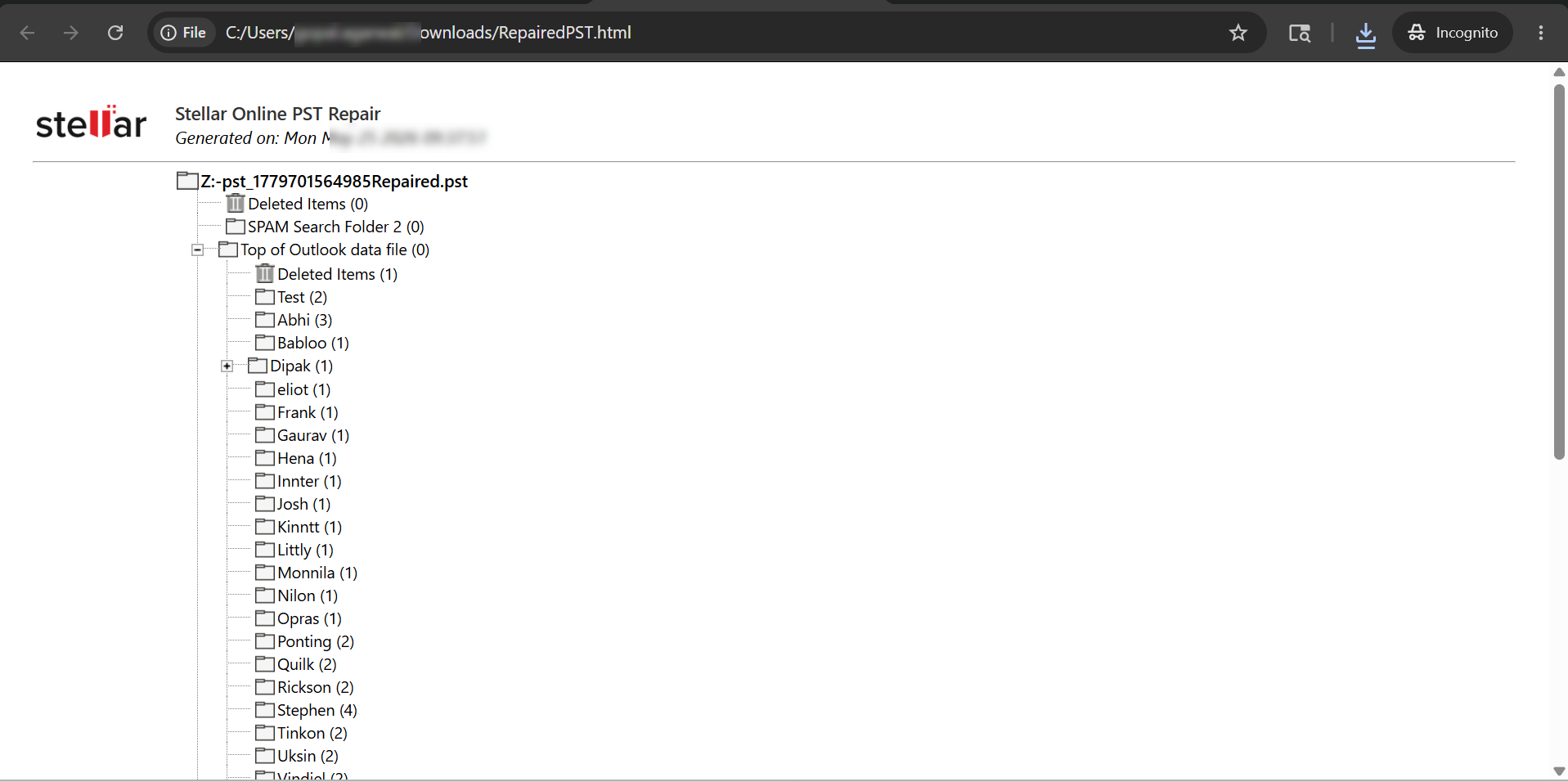
4. Preview the Repaired Folder Structure
After the repair process, users can preview the recovered folder structure and item count before downloading the repaired file. This helps confirm whether the tool was able to detect and repair the mailbox data.
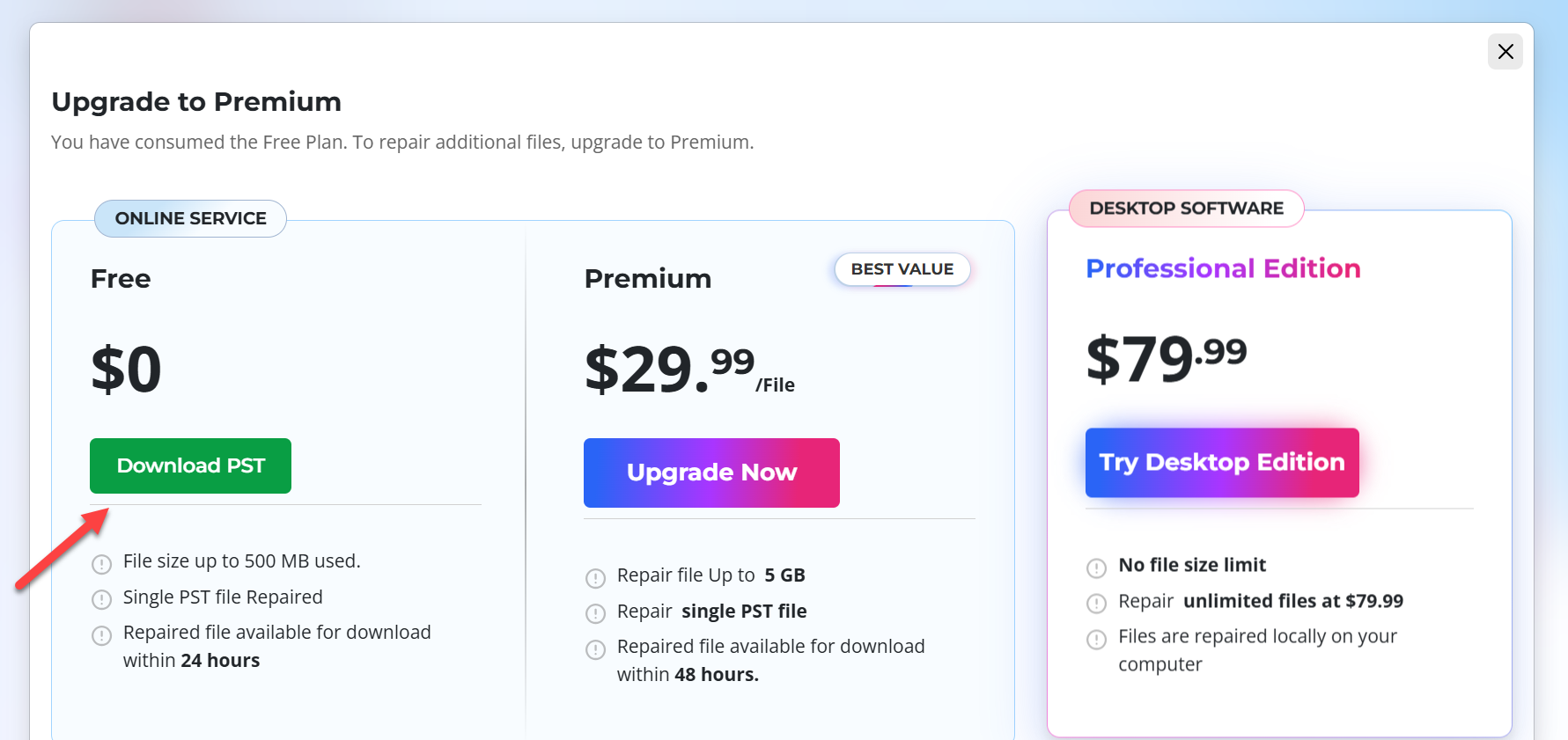
5. Download the Repaired PST File
Once the repair is complete, download the repaired PST file to your computer. Save it somewhere separate from the original corrupt file so you can keep an untouched backup.
6. Open or Import the Repaired File in Outlook
After downloading the repaired PST file, you can save it to your preferred location and open or import it in Outlook.
Best Practices Before Repairing a PST File
Before attempting any PST repair, take a few precautions. These steps can help reduce the risk of further data loss and make the repair process cleaner.
- First, create a backup copy of the corrupt PST file. Even if the file will not open, keeping an untouched copy is useful in case you need to try another repair method later.
- Second, avoid saving the repaired file to the same location if the original PST file is stored on a failing drive. If the storage device is unstable, move the file to a healthy drive before attempting repair.
- Third, close Outlook before working with the PST file. Trying to repair a file while Outlook is actively using it can create conflicts.
- Fourth, make sure you have enough free storage space for the repaired PST file. Depending on the size of the original mailbox, the repaired file may require significant space.
Finally, do not rely on a single repair attempt if the PST file contains business-critical data. For larger or severely damaged files, a desktop PST repair solution by Stellar Repair for Outlook may provide more control.
When to Use Stellar Repair for Outlook Desktop Software
The online PST repair tool is a strong starting point, but it is not always the right option for every situation. If your PST file is very large, severely corrupt, or requires more advanced handling, Stellar Repair for Outlook desktop software may be more appropriate.
The desktop version is designed to repair corrupt or damaged PST files and recover mailbox items such as emails, attachments, contacts, calendar entries, tasks, notes, and journals. It is also useful for users who want more control over the repair process, including previewing recoverable data before saving.
Consider the desktop solution if:
- Your PST file is larger than the online limit.
- You need to repair multiple PST files.
- The file is severely damaged.
- You want to scan and preview recoverable mailbox items before saving.
- You prefer to process the file locally on your computer.
- You need advanced save or export options.
- You are an IT admin handling business-critical Outlook data.
Online PST Repair vs Desktop PST Repair
Stellar offers both online and desktop PST repair options based on your recovery requirements.
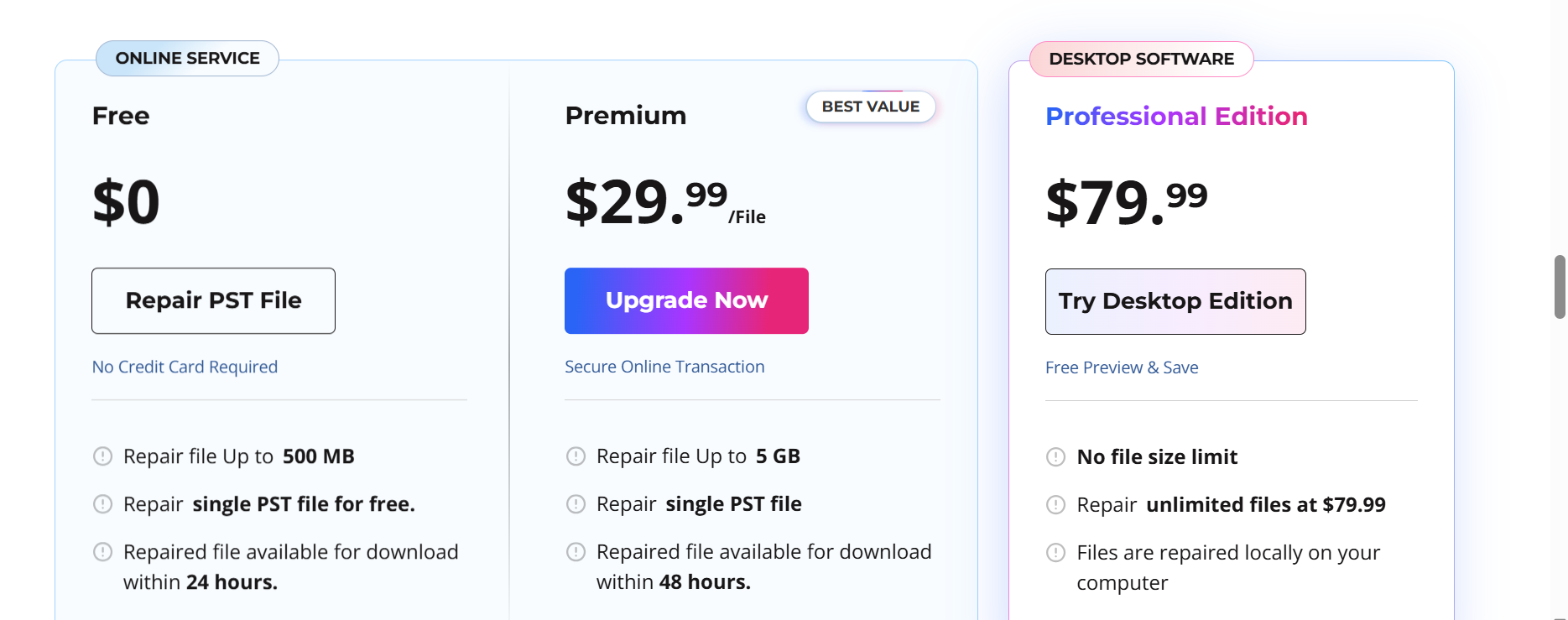
Choosing between online and desktop repair depends on the size of the file, the severity of corruption, and how much control you need during recovery.
| Situation | Recommended Option |
|---|---|
| You want a quick browser-based repair | Online PST Repair |
| You do not want to install software | Online PST Repair |
| You need to repair one PST file | Online PST Repair |
| Your PST file is small or moderately sized | Online PST Repair |
| Your PST file is very large | Desktop PST Repair |
| You need to repair multiple PST files | Desktop PST Repair |
| You want local file processing | Desktop PST Repair |
| You need advanced preview and save options You want save repaired PST file in multiple file formats such as: PST, MSG, EML, RTF, PDF & HTML | Desktop PST Repair Desktop PST Repair |
For most users, the best path is simple: start with the online solution if the file size and repair needs are straightforward. Move to the desktop solution if the PST file is large, severely corrupt, or requires advanced recovery.
Why ScanPST.exe May Not Be Enough
Microsoft includes ScanPST.exe, also known as the Inbox Repair Tool, with Outlook. It can help repair minor PST file issues, but it has limitations. If the corruption is severe, the file is oversized, or the damage affects deeper file structures, ScanPST.exe may fail or only partially repair the data.
That is when a dedicated PST repair solution becomes useful. Stellar’s online and desktop PST repair options are built specifically for Outlook PST corruption scenarios, including inaccessible files, Outlook crashes, oversized PST issues, bad sectors, malware-related damage, synchronization conflicts, and other common corruption causes.
What Mailbox Items Can Be Recovered?
A corrupt PST file may contain more than just emails. Depending on how the Outlook profile was used, the file may also include contacts, calendar events, attachments, tasks, notes, and journals.
Stellar PST repair solutions are designed to help recover key Outlook mailbox items, including:
- Emails
- Attachments
- Contacts
- Calendar entries
- Tasks
- Notes
- Journals
- Folder structures
This is important because many users do not realize how much critical information is stored inside a PST file until Outlook stops opening it.
Is Online PST Repair Secure?
Security matters when uploading any mailbox file because PST files can contain sensitive business and personal information.
A secure online PST repair solution should use a protected upload and repair process, limit access to user data, and remove repaired files after a defined period. Users should also follow good data-handling practices before uploading any mailbox file.
If the PST file contains highly sensitive corporate, legal, healthcare, financial, or regulated information, confirm that the online process aligns with your organization’s security requirements before uploading the file. In those cases, the desktop tool may be preferable because files can be repaired locally on the user’s computer.
Tips to Prevent PST File Corruption in the Future
After repairing a PST file, it is worth taking steps to reduce the risk of future corruption.
- Keep PST files at a manageable size. Large PST files are more likely to become slow, unstable, or difficult to repair. Close Outlook properly before shutting down your computer. Sudden shutdowns while Outlook is writing data can damage the file.
- Back up Outlook data regularly, especially if you rely on PST files for important emails or archives.
- Avoid storing active PST files on unreliable external drives or network locations. Connection interruptions can increase the risk of corruption.
- Keep your system protected from malware and viruses. Malicious software can damage Outlook data files and other important documents.
- Check storage health if corruption happens repeatedly. A damaged hard drive or SSD can continue to corrupt repaired or newly created files.
A corrupt PST file can prevent access to important Outlook data, including emails, contacts, calendars, and attachments. While ScanPST.exe may fix minor issues, severe corruption often requires a dedicated repair solution. Stellar Repair for Outlook offers a simple browser-based way to repair damaged PST files without installing Outlook or additional software. For larger or more complex corruption cases, Stellar Repair for Outlook desktop software provides advanced recovery and repair capabilities.
Frequently Asked Questions
Can I repair a corrupt PST file online?
Yes. An online PST repair solution can help repair a corrupt or damaged Outlook PST file through a browser-based process. This is often a convenient first step for users who want to fix a PST file without installing software.
Do I need Outlook installed to repair a PST file online?
In many cases, online PST repair tools do not require Outlook to be installed on the same device. The file is uploaded and repaired through the online platform.
What should I do before repairing a PST file?
Create a backup copy of the corrupt PST file, close Outlook, check that you have enough storage space, and avoid saving repaired data to a damaged or unstable drive.
Should I use an online or desktop PST repair tool?
Use an online PST repair tool if you want a quick browser-based option for a single corrupt PST file. Use desktop PST repair software if the file is very large, severely corrupt, or requires advanced recovery options.
Can a PST repair tool recover attachments?
Yes. A dedicated PST repair solution can help recover emails and associated mailbox items, including attachments, contacts, calendars, tasks, notes, and folder structures.
What if ScanPST.exe does not fix the PST file?
If ScanPST.exe fails or only partially repairs the file, use a dedicated Outlook PST repair solution. More advanced tools are designed to handle deeper corruption, larger files, and more complex recovery scenarios.